> ## Documentation Index
> Fetch the complete documentation index at: https://docs.chatsailer.com/llms.txt
> Use this file to discover all available pages before exploring further.
# Create and manage API tokens
> Issue a token from the Sailer app, pick its scopes and expiry, and revoke it.
API tokens are created in the Sailer app by anyone with the **Configuration**
permission on the workspace. Organization admins have it by default. If you
don't, ask one of them to follow this page for you.
## Find the API tab
In the sidebar, under **Settings**, click **Company Profile**.
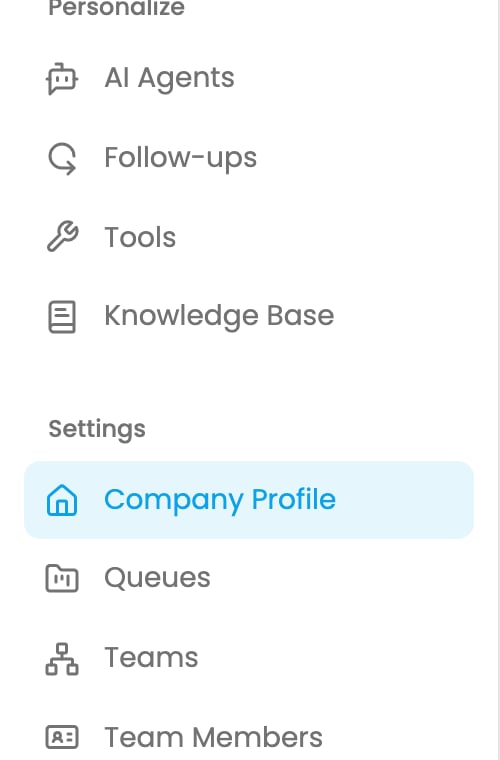 Click the company whose data the integration will use, then open the
**API** tab.
Click the company whose data the integration will use, then open the
**API** tab.
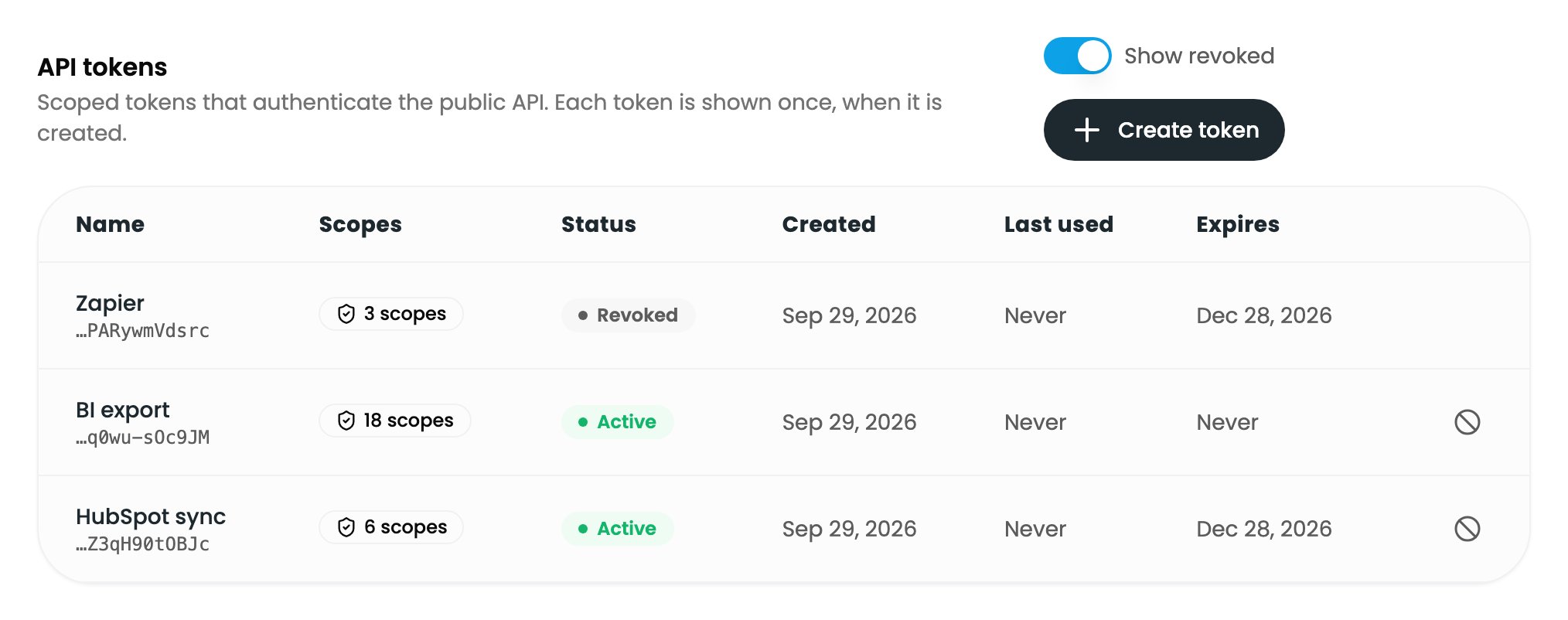
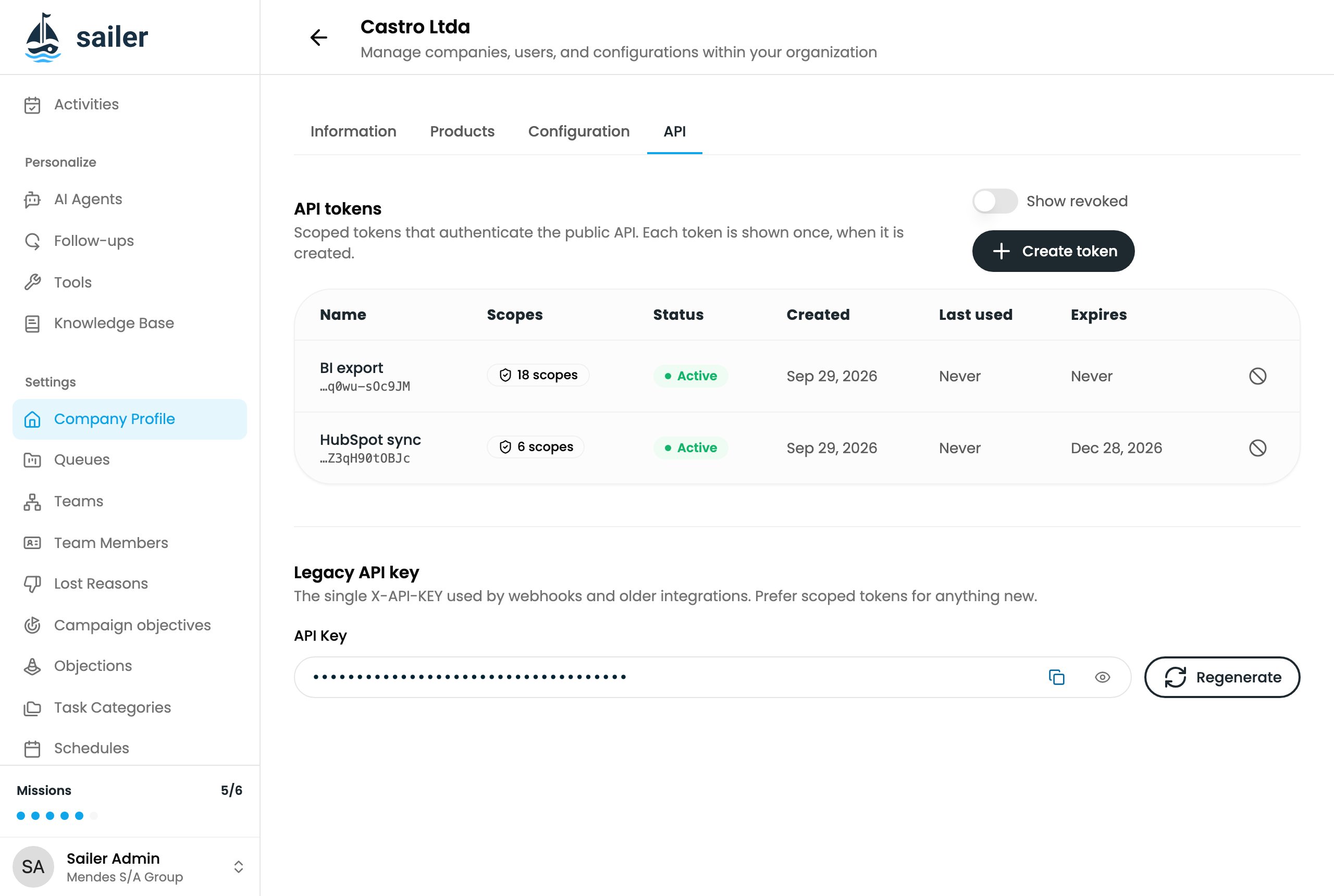 The tab lists every token for the workspace: its name, the last characters of
the token, how many scopes it has, its status, when it was created, when it was
last used, and when it expires. Click the scope count to see the full list.
## Create a token
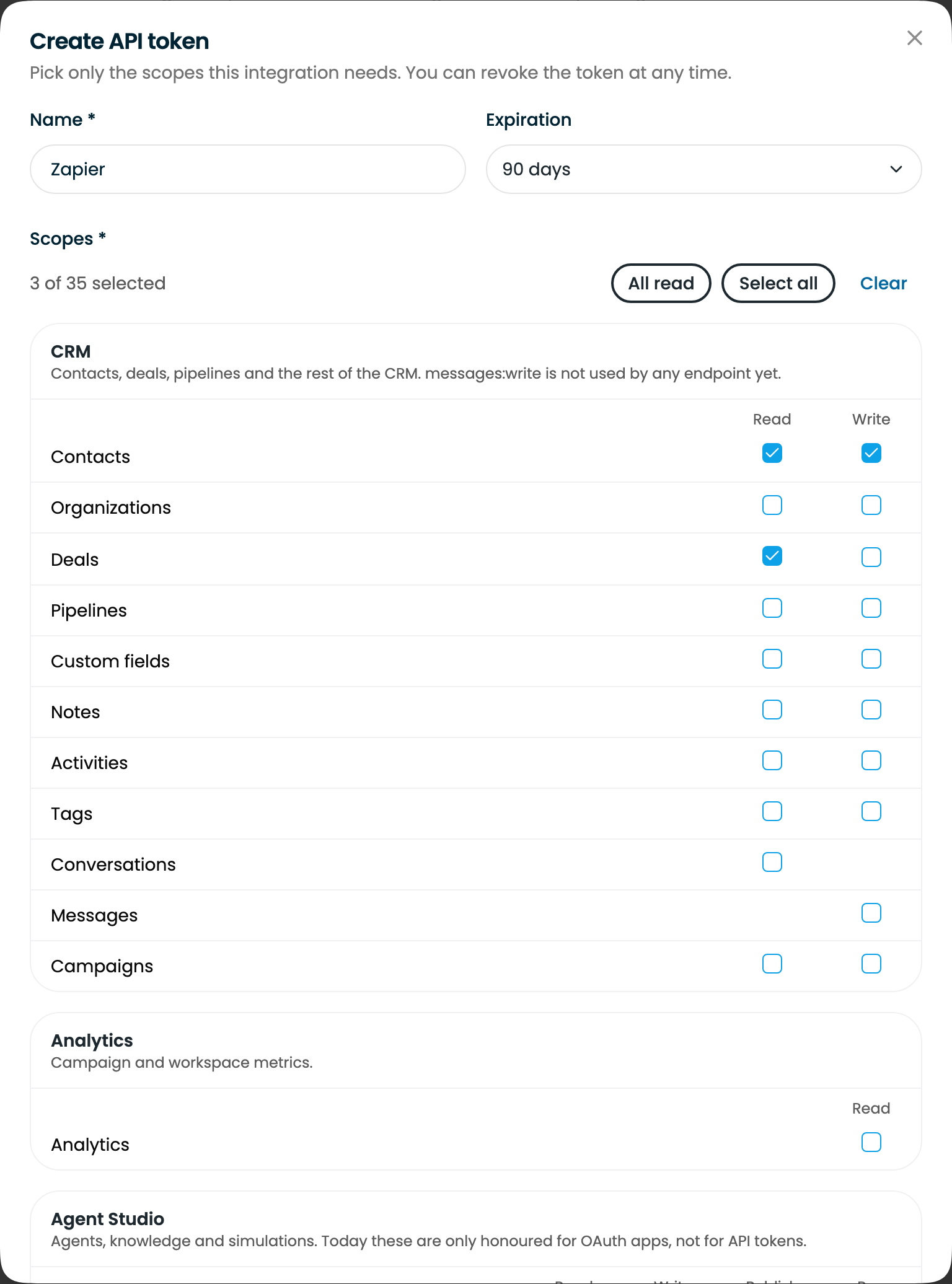
Click **Create token**.
* **Name**: what the token is for, such as the integration it belongs to.
Up to 120 characters. Only people in the workspace see it.
* **Expiration**: **Never expires**, **30 days**, **90 days**, or
**1 year**. See [Expiry](#expiry).
* **Scopes**: at least one. See [Choosing scopes](#choosing-scopes).
The tab lists every token for the workspace: its name, the last characters of
the token, how many scopes it has, its status, when it was created, when it was
last used, and when it expires. Click the scope count to see the full list.
## Create a token
Click **Create token**.
* **Name**: what the token is for, such as the integration it belongs to.
Up to 120 characters. Only people in the workspace see it.
* **Expiration**: **Never expires**, **30 days**, **90 days**, or
**1 year**. See [Expiry](#expiry).
* **Scopes**: at least one. See [Choosing scopes](#choosing-scopes).
 Click **Create token**. The token is shown **once**. Click **Copy** and
store it in your integration's secret manager or environment variables.
Click **Create token**. The token is shown **once**. Click **Copy** and
store it in your integration's secret manager or environment variables.
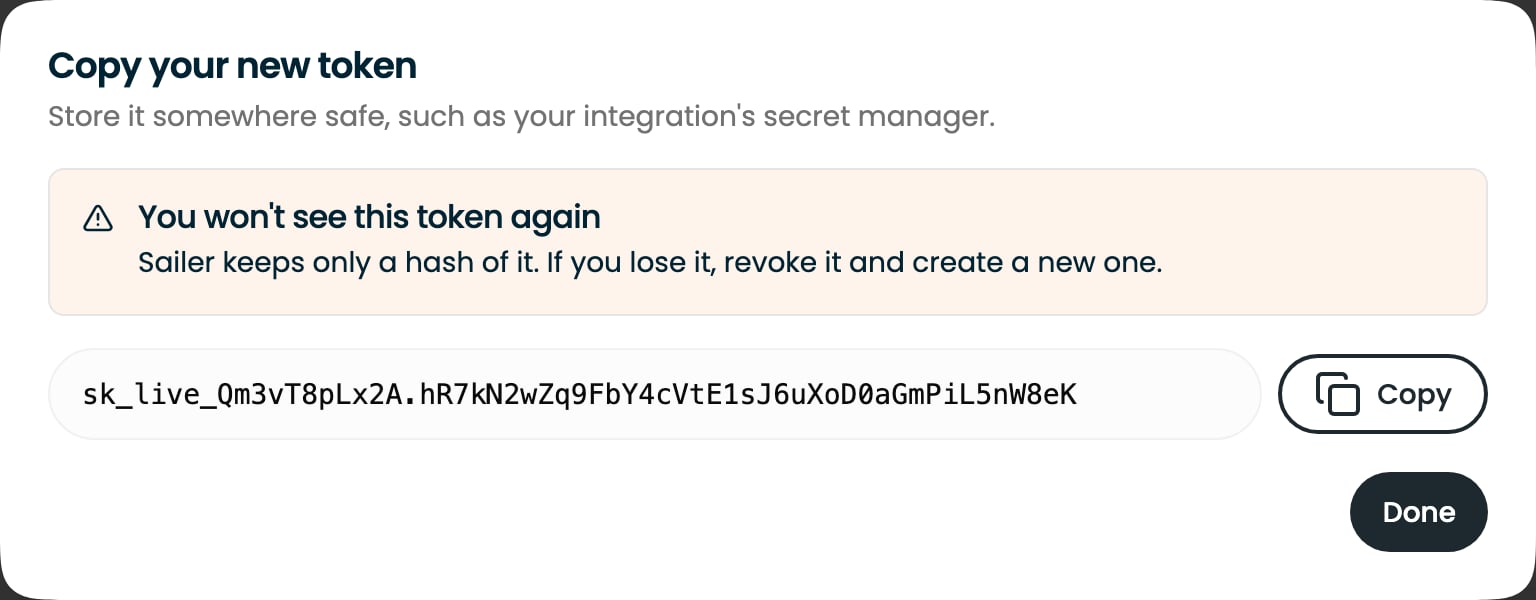 Sailer keeps only a hash of the token, so nobody can show it to you again.
This screen closes only when you click **Done**. If you lose the token,
revoke it and create a new one.
```bash theme={null}
curl https://api.chatsailer.com/v1/me \
-H "Authorization: Bearer $SAILER_API_TOKEN"
```
The response names the workspace and lists the token's scopes. See the
[Quickstart](/guides/quickstart) for your first real request.
## Choosing scopes
The picker groups scopes by area, with one column per access level. **Read**
covers listing and retrieving records. **Write** covers creating, updating and
deleting them. **All read** selects every read scope, **Select all** selects
everything, and **Clear** removes every scope.
| Group | What it covers |
| - | - |
| **CRM** | Contacts, organizations, deals, pipelines, custom fields, notes, activities, tags, conversations, messages and campaigns |
| **Analytics** | Campaign and workspace metrics |
| **Agent Studio** | Agents, agent tools, knowledge base, queues, sandbox, simulations, evaluations and inference |
Pick the narrowest set the integration needs. A token reads the whole workspace
within its scopes, whoever owns the records. A call without the right scope
returns `403 insufficient_scope`, and the message names the missing scopes.
Not every scope in the picker does something on an API token today:
* **Agent Studio** scopes work only for OAuth apps. For Agent Studio, connect
through [MCP](/mcp/auth) instead.
* **Messages · Write** (`messages:write`) is not used by any endpoint. The
public API can't send messages.
[Authentication](/guides/authentication#scopes) lists which scopes have
endpoints on `/v1`.
You can't change a token's scopes after creating it. To change them, create a
new token with the scopes you want, move the integration to it, then revoke
the old one.
## Expiry
| Option | The token stops working |
| - | - |
| **Never expires** | Only when you revoke it |
| **30 days**, **90 days**, **1 year** | That long after you create it |
Once a token expires, the API answers `401` and the token's status in the list
changes to **Expired**. You can't extend a token. Create a new one before the
old one expires, then revoke the old one.
Use an expiry for anything temporary: a trial, a one-off import, or a
contractor's access.
## Revoke a token
Revoke a token when an integration is retired, when the person who set it up
leaves, or whenever you think it might have leaked.
In the token's row, click the revoke icon at the end, then confirm.
Sailer keeps only a hash of the token, so nobody can show it to you again.
This screen closes only when you click **Done**. If you lose the token,
revoke it and create a new one.
```bash theme={null}
curl https://api.chatsailer.com/v1/me \
-H "Authorization: Bearer $SAILER_API_TOKEN"
```
The response names the workspace and lists the token's scopes. See the
[Quickstart](/guides/quickstart) for your first real request.
## Choosing scopes
The picker groups scopes by area, with one column per access level. **Read**
covers listing and retrieving records. **Write** covers creating, updating and
deleting them. **All read** selects every read scope, **Select all** selects
everything, and **Clear** removes every scope.
| Group | What it covers |
| - | - |
| **CRM** | Contacts, organizations, deals, pipelines, custom fields, notes, activities, tags, conversations, messages and campaigns |
| **Analytics** | Campaign and workspace metrics |
| **Agent Studio** | Agents, agent tools, knowledge base, queues, sandbox, simulations, evaluations and inference |
Pick the narrowest set the integration needs. A token reads the whole workspace
within its scopes, whoever owns the records. A call without the right scope
returns `403 insufficient_scope`, and the message names the missing scopes.
Not every scope in the picker does something on an API token today:
* **Agent Studio** scopes work only for OAuth apps. For Agent Studio, connect
through [MCP](/mcp/auth) instead.
* **Messages · Write** (`messages:write`) is not used by any endpoint. The
public API can't send messages.
[Authentication](/guides/authentication#scopes) lists which scopes have
endpoints on `/v1`.
You can't change a token's scopes after creating it. To change them, create a
new token with the scopes you want, move the integration to it, then revoke
the old one.
## Expiry
| Option | The token stops working |
| - | - |
| **Never expires** | Only when you revoke it |
| **30 days**, **90 days**, **1 year** | That long after you create it |
Once a token expires, the API answers `401` and the token's status in the list
changes to **Expired**. You can't extend a token. Create a new one before the
old one expires, then revoke the old one.
Use an expiry for anything temporary: a trial, a one-off import, or a
contractor's access.
## Revoke a token
Revoke a token when an integration is retired, when the person who set it up
leaves, or whenever you think it might have leaked.
In the token's row, click the revoke icon at the end, then confirm.
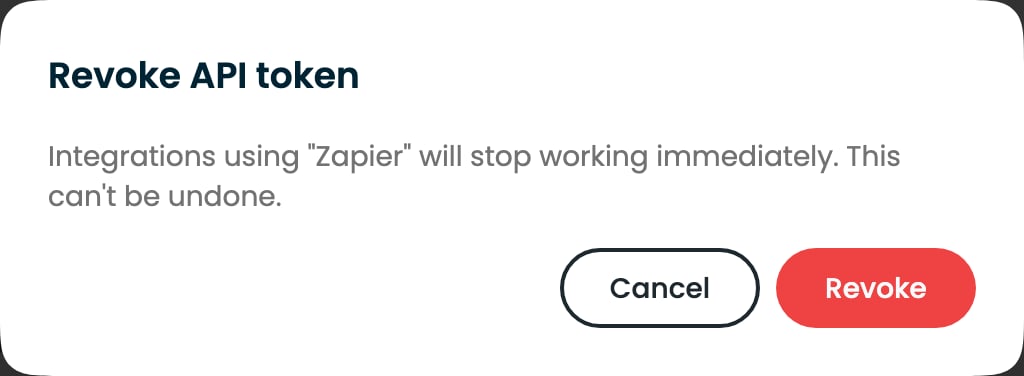 The next request with that token gets `401`. Revoking can't be undone.
Revoked tokens are hidden from the list. Turn on **Show revoked** to see them,
for example to check when something was turned off.
The next request with that token gets `401`. Revoking can't be undone.
Revoked tokens are hidden from the list. Turn on **Show revoked** to see them,
for example to check when something was turned off.
 ## Statuses
| Status | Meaning |
| - | - |
| **Active** | The token works |
| **Expired** | Its expiry date has passed. Requests get `401` |
| **Revoked** | Someone revoked it. Requests get `401` |
| **Legacy** | The workspace's older `X-API-KEY` credential. It can't be revoked here; see below |
**Last used** is updated at most every few minutes, so a token you just used
can still show an older time.
## The legacy API key
Below the token list, **Legacy API key** shows the workspace's single
`X-API-KEY`. Webhooks and older integrations use it; the `/v1` API does not.
Use API tokens for anything new.
**Regenerate** replaces that key right away. Everything that uses the old key
stops working until you update it, so find those integrations first.
## Good practice
* One token per integration, so revoking one never breaks the others.
* Keep tokens on the server. A token in browser or mobile code is a leak of the
whole workspace.
* Keep tokens in environment variables or a secret manager, never in source
control.
* If a token leaks, revoke it first and investigate afterwards.
## Statuses
| Status | Meaning |
| - | - |
| **Active** | The token works |
| **Expired** | Its expiry date has passed. Requests get `401` |
| **Revoked** | Someone revoked it. Requests get `401` |
| **Legacy** | The workspace's older `X-API-KEY` credential. It can't be revoked here; see below |
**Last used** is updated at most every few minutes, so a token you just used
can still show an older time.
## The legacy API key
Below the token list, **Legacy API key** shows the workspace's single
`X-API-KEY`. Webhooks and older integrations use it; the `/v1` API does not.
Use API tokens for anything new.
**Regenerate** replaces that key right away. Everything that uses the old key
stops working until you update it, so find those integrations first.
## Good practice
* One token per integration, so revoking one never breaks the others.
* Keep tokens on the server. A token in browser or mobile code is a leak of the
whole workspace.
* Keep tokens in environment variables or a secret manager, never in source
control.
* If a token leaks, revoke it first and investigate afterwards.